Using Split PDF
Extract every page of a PDF into its own one-page PDF and download the collection as a ZIP archive. This is useful for separating a batch of scanned receipts or sharing individual pages from a combined document. The current browser implementation splits all pages; it is not a custom page-range editor.
How to use Split PDF
A look at the tool, from choosing your file to checking the result.
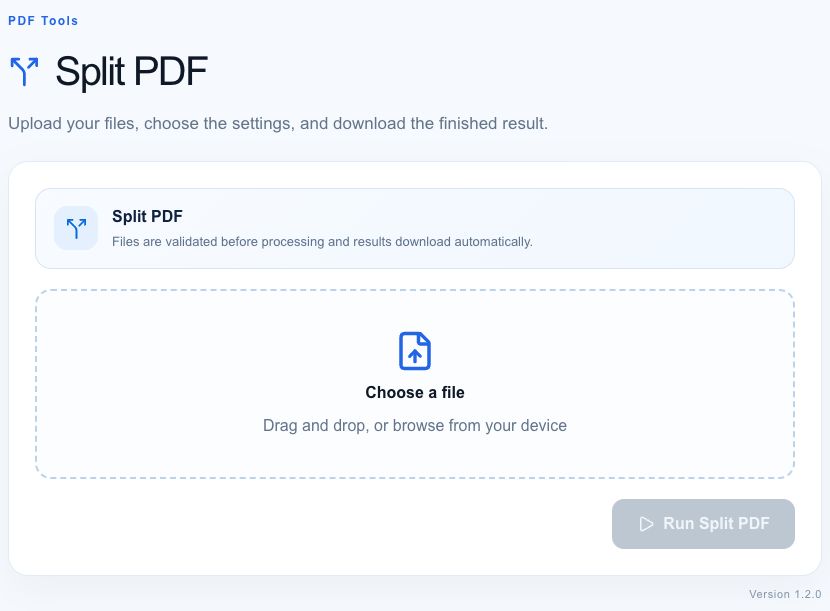
- 01
Choose a PDF
Select the document you want to separate.
- 02
Run the split
Start Split PDF and wait for processing to finish.
- 03
Check the files
Open the downloaded results and check the pages you need.
Worked example
A three-page PDF produces a ZIP containing page-1.pdf, page-2.pdf, and page-3.pdf. Extract the ZIP on your device, open each file, and rename the files to describe their contents. To share two of those pages together, merge just those two extracted PDFs.
What to check and what this tool cannot do
The output is a ZIP, not one combined PDF. Splitting does not remove confidential content from the pages you choose to share. Password-protected PDFs are not supported by the local splitter. Bookmarks, signatures, document attachments, and interactive forms may not survive page extraction as usable document features.
Getting a useful result
Check the original page count before splitting and compare it with the number of extracted files. On a phone, use the system Files app to extract the archive. For a large scanned document, close other heavy browser tabs before processing. Keep the original until you have checked the extracted pages.
Where processing happens
Developer and text tools process input in your browser. PDF and image tools may attempt local conversion and use server processing when local conversion is unavailable. Website requests and usage analytics are separate from the content you enter. Large files can exceed your device’s available memory. See how tools work and our privacy policy.
Found an incorrect result? Report it with a non-sensitive example.