Using Rotate PDF
Turn all pages of a PDF by the selected angle and save a corrected copy. Use it when an entire scan is sideways or upside down. The rotation is applied in addition to each page’s existing rotation, so a 90-degree adjustment turns the current view another quarter turn.
How to use Rotate PDF
A look at the tool, from choosing your file to checking the result.
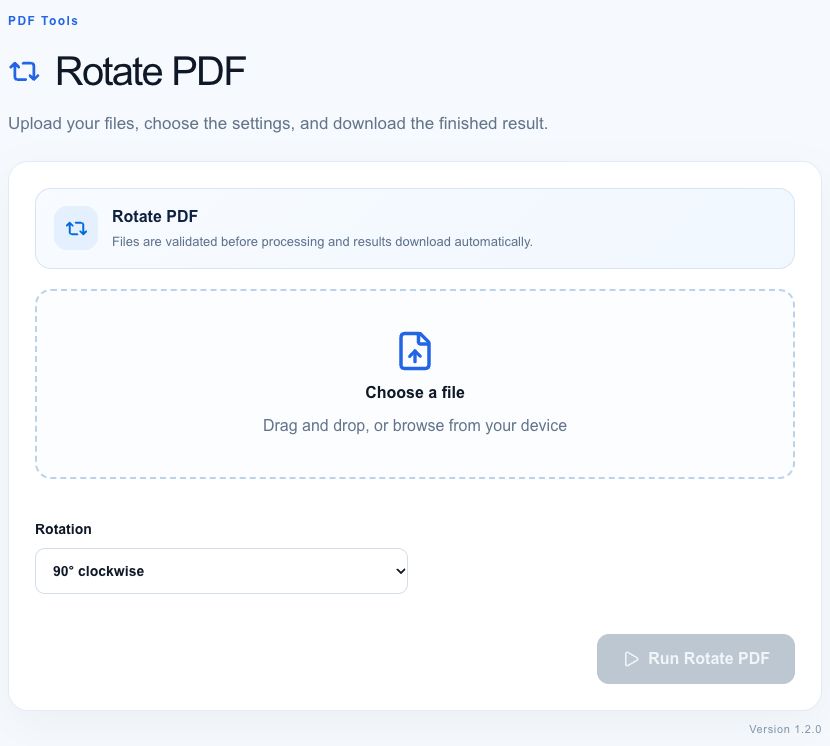
- 01
Choose a PDF
Select the document with pages facing the wrong way.
- 02
Choose the rotation
Pick the angle that corrects the page orientation.
- 03
Save and check
Run Rotate PDF, then open the download to check the result.
Worked example
For a document whose pages are all upside down, choose 180 degrees and run the tool. Open the downloaded rotated PDF in another viewer and check several pages. If only one page in a mixed-orientation document needs changing, split the document, rotate that page, and merge the pages again in the original order.
What to check and what this tool cannot do
The current tool rotates every page, not an individually selected page. It changes PDF page orientation rather than detecting the direction of text. It does not deskew a slightly tilted scan, recognize text, crop margins, or repair corrupted PDFs. Encrypted PDFs can fail to load.
Getting a useful result
Start with a copy of the source. Choose 90 or 270 degrees for sideways pages and 180 degrees for upside-down pages. If a preview still looks wrong, check the downloaded document rather than relying only on a browser’s cached PDF preview. Review signed or form-based documents carefully after any modification.
Where processing happens
Developer and text tools process input in your browser. PDF and image tools may attempt local conversion and use server processing when local conversion is unavailable. Website requests and usage analytics are separate from the content you enter. Large files can exceed your device’s available memory. See how tools work and our privacy policy.
Found an incorrect result? Report it with a non-sensitive example.