Using JPG to PDF
Turn a JPG image into a PDF that is convenient to view and share. This is useful for sending a photographed receipt or a document picture when a PDF upload is required. The free option accepts one image per conversion; the interface offers multiple images with Plus.
How to use JPG to PDF
A look at the tool, from choosing your file to checking the result.
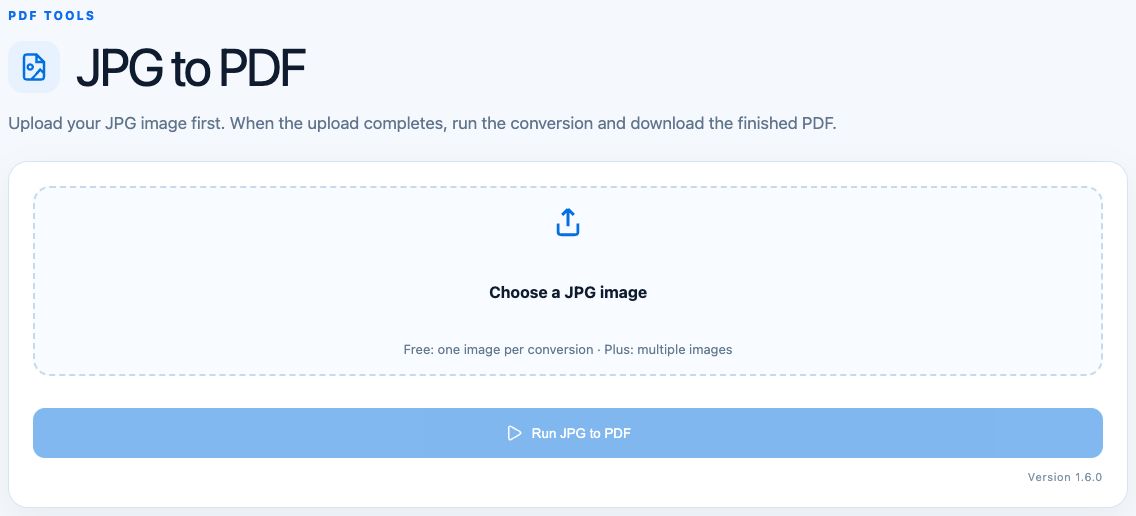
- 01
Choose a JPG
Select your image. The free option accepts one image per conversion.
- 02
Wait for the upload
Let the upload finish before starting the conversion.
- 03
Create your PDF
Run JPG to PDF, download the result, and check the image orientation.
Worked example
Choose a receipt photograph named receipt.jpg. Wait for the upload to complete, run JPG to PDF, and open the downloaded PDF. Check that the whole receipt is visible and that small print is readable before submitting it.
What to check and what this tool cannot do
The tool embeds pictures; it does not perform OCR, so photographed text is not automatically searchable or editable. Mixed image dimensions can produce different page sizes. Image metadata and color appearance may differ between viewers. Large photographs can create a large PDF and consume substantial browser memory.
Getting a useful result
Crop unnecessary background and resize oversized photographs before conversion. Correct sideways images first. Inspect small print at normal zoom in the final PDF, and retain the original photograph in case you need another version.
Where processing happens
Developer and text tools process input in your browser. PDF and image tools may attempt local conversion and use server processing when local conversion is unavailable. Website requests and usage analytics are separate from the content you enter. Large files can exceed your device’s available memory. See how tools work and our privacy policy.
Found an incorrect result? Report it with a non-sensitive example.